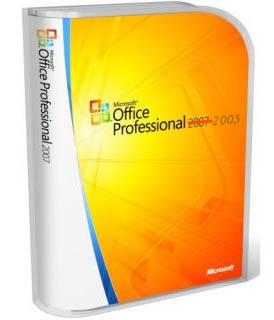
 This might be an old trick but i hope it will still help some people who failed their effort installing MS Office 2003 on Windows Vista.
For some reasons, MS Office 2007 might not suit you so that you decide to downgrade, uninstall MS Office 2007 and revert back to MS Office 2003. If you’re Windows XP user, the downgrade process should go smoothly without staggering problem. However some Vista users may experience difficulties during the installation and need to resort for solution that works on their operating system.
There are some occasions for the installation to take place. First is if you want to install several versions of MS Office on the same system. For example, you want to install MS Office 2003 along with the newer Windows 2007. Microsoft have already written technical explanation on how to achieve this. You can read the whole article here. The gist of the article is to install MS Office in subsequent order from the oldest to the newer one. In case you want to install MS Office XP, 2003, and 2007 on the same machine, you should install MS Office XP first followed by Office 2003 and Office Suite 2007 respectively.
There is another circumstance, anyway, where you simply want to get rid of your Office 2007 and replace it with Office 2003 so that you can still exchange documents with your colleagues since they haven’t bought their copy of MS Office 2007. As we know, MS Office 2007 uses the new open XML document format so that the default filetype name for the document will contain ‘x’ as the suffix (eg: .docx). If you are in this circumstance and still face difficulty during the installation, I recommend you to read the rest of this article.
What you need to do first is to uninstall MS Office 2007. Simply click Default Programs menu from your Startup Menus and find the link to the list of installed programs. The uninstallation should be simple and it should bring you no problem at all.
Next, you can not simply install MS Office 2003 after the installation. Eventhough the installer removes MS Office 2007 files from your system, it still retains the registry. The reason is, MS Office is shipped as OEM (Original Equipment Manufacturer) whereas it should be installed on a single computer for a single license (or as what the license says). In case of reinstallation, it might violate the original purpose of the license hence Microsoft keeps the registry after the uninstallation process. So, if you’re downgrading MS Office after past installation, you need to check whether the registry is still kept in your machine. If you simply install without checking the registry, you may encounter the following error:
Installation Error: File not found
A required installation file CS561404.CAB could not be found
Now back to the registry editing, use regedit to check the registry entry of previous MS Office versions:
1. Go to Start Menu > Run (or Windows + R from your keyboard)
2. Type regedit
3. Find these entries
HKEY_CURRENT_USER\Software\Microsoft\Office11.0 (or 12.0)
HKEY_LOCAL_MACHINE\Software\Microsoft\Office11.0
4. Right click on the each of the entries and choose Rename. You can rename it to whatever name you like, for example BlahOffice11.0
The point here is, by renaming the registry into another one, MS Office installer will consider the installation as fresh install in which you have no previous MS Office installed so that it will simply go with default installation process.
5. Restart your computer
After restarting your computer, you may begin the installation for MS Office 2003 from your CD smoothly.
These days, more users are shifting their document processors from Office 2003 to Office 2007. You can find scattered information about how to use MS Office 2007 or for the sake of efficient reading, learning from some ebooks like this one. While you use Office 2003 yourself, you can still also read documents made using Office 2007 by downloading and installing MS Office compatibility pack provided by Microsoft.
I haven’t thought that it was so easy 🙂
This doesn’t work for me…help!
I like to downgrade my MS Office Professional 2007 to MS Office Professional 2003, the problem is I don’t have the 2003 version. is possible to donwload for free?
Thanks
@Paula
MS Office is a commercial proprietary software package. I haven’t known that you can obtain the software legally for free. However, if you are interested in the substitute software of ms office which offers similar functionalities, you can use Open Office. If you often work with academic documents, you can use LaTeX.
People who want to downgrade MS Office 2007 to 2003 usually come up with the idea since they are uncomfortable with the new interface. The documentation and search engine can be good resources to familiarize oneself with the product. Nevertheless, sometimes learning time is an issue thus people want to go back to status quo.
Works for me.. Thanks for your tips!
Do you mind if I quote a couple of your articles or
blog posts as long as I provide credit and sources returning to your
webpage: https://tech.amikelive.com/node-95/installing-ms-office-2003xp-on-windows-vista-tips-and-tricks/.
I will aslo be sure to give you the appropriate anchor-text
hyperlink using your webpage title: Installing MS Office 2003/XP On Windows
Vista. Be sure to let me know if this is ok with you.
Thanks!
@Karen
Feel free to quote the articles as long as the link to the original source is provided.
Thanks for your interest.
I obtained a used copy of Office 2003 Student and Teacher Edition, which I installed on my VISTA 64 bit laptop without problems. Shortly after that, I obtained a used copy of Office Pro 2003. At first my problem was that I didn’t have the service pack upgrade installed, so it wouldn’t even get to the point of entering the registration number. I did get the service pack installed, and now, after entering the registration code, I am told I must have an EARLIER version of Office than 2003 installed in order to install Office Pro. What can I do now? I don’t have the money to purchase a later version unless I can find it used.
Thank you.
I am really thankful to you for sharing this information with us.If you are looking for Microsoft Office For Windows Pc,visit officecomsetup-key.com.