Previously, I have discussed about how to install MySQL on Fedora Linux. In this post, I would like to elaborate PHP installation on Fedora. Even though the installation is simple by nature, I would like to provide some notes to help you troubleshoot some post-installation problems that may occur.
As usual, I will provide the screenshots of the installation along with the commands invoked on the terminal. For the environment, some important settings are written below:
OS : Fedora 13 64-bit
Web server : Apache HTTP Server
PHP version : PHP 5.3.2
Constraints : yum is installed, commands invoked in root shell, Apache is already installed and running
Note: Apache is installed by default in Fedora. You only need to configure and verify that the server is running. How to configure Apache is explained in the online documentation. If you want the server to be public, i.e. accessible from other computers in the network, you should not firewall the HTTP port, which is usually port 80. Also, if you enable selinux, you also need to properly set the flag of some security parameters related to http. I will explain about selinux and http in another post.
Now, let’s move to the installation. Basic installation steps are as follows:
1. Install PHP via yum
root# yum install php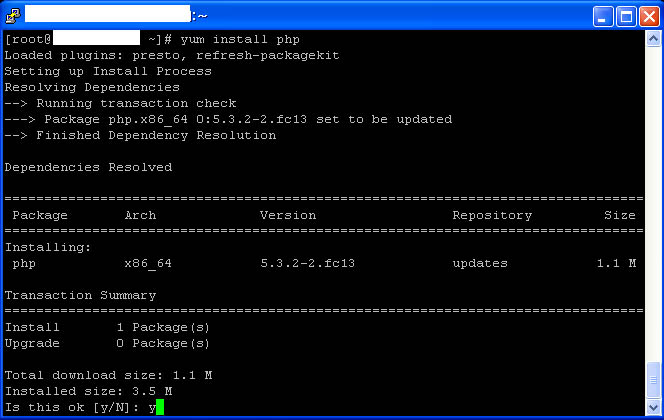
2. Configure php.ini
root# vi /etc/php.iniMinimal configuration:
-FIND:
;session.save_path = “/var/lib/php/session”
-CHANGE INTO
session.save_path = “/var/lib/php/session” (or other directory you want to store the session)
3. Configure httpd.conf
root# vi /etc/httpd/conf/httpd.confWe need to hook PHP shared object into Apache so that the web server will recognize PHP code and parse it properly.
Minimal configuration:
– FIND:
DirectoryIndex index.html index.html.var
– APPEND index.php TO END OF LINE
DirectoryIndex index.html index.html.var index.php
– FIND:
AddType application/x-gzip .gz .tgz
– AFTER the line ADD:
AddType application/x-httpd-php .php
4. Restart Apache
root# service httpd restart
5. Test if PHP is properly working
a. Test from command line
root#php -r "phpinfo();"If the installation was successful, you should be able to see the details of your PHP installation from the command line interface.
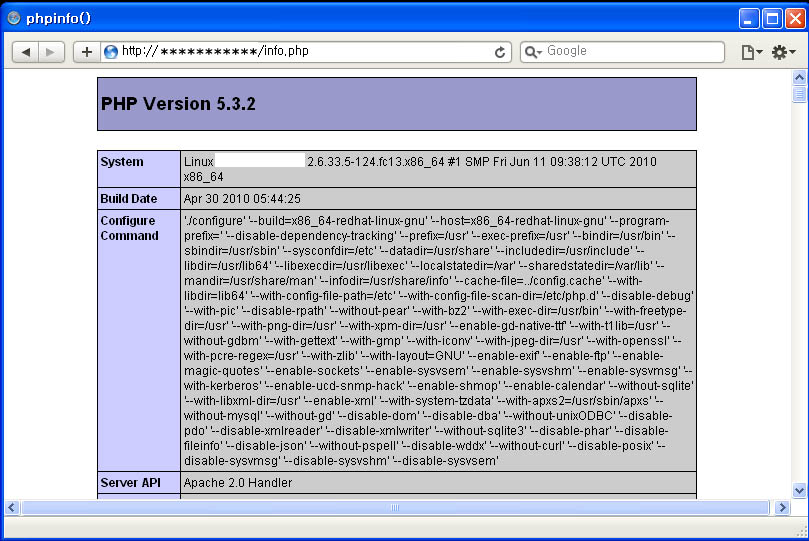
b. Test from the browser
Create a file named info.php and put it on the document root folder of your server.
info.php
<?php

phpinfo();

?>
Post-installation steps
In Windows, there is an ext directory containing dlls of PHP extensions that are bundled in the software package. However, this does not apply to Fedora Linux. Several PHP extensions are built as shared modules hence we should install them separately.
1. Installing some extensions that are extensively used in web development
Below, you can see the list of the extra extensions we will install after the basic PHP installation.
- php-mysql : php extension for mysql (this will install php-pdo, an extension for native database abstraction in PHP called PDO, as dependency)
- php-xml : php extension for XML-related functionalities
- php-mcrypt : php extension for mcrpyt encryption library
- php-mbstring: php extension for multibyte functionalities (used when working with various charsets)
- php-gd : php extension for dynamic creation of images in PHP using GD library
root# yum install php-mysql php-pdo php-xml php-mcrypt php-mbstring php-gd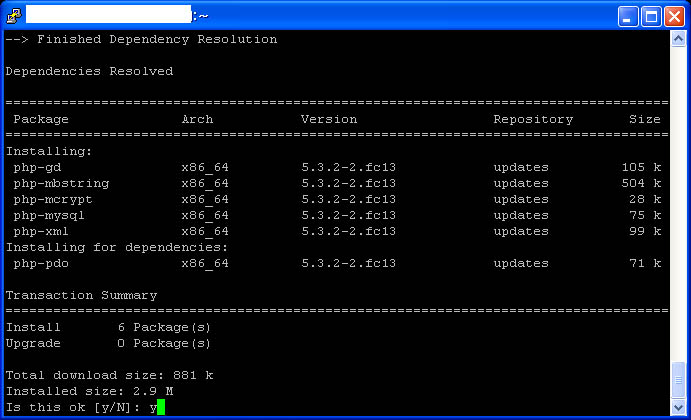
Note: if you want to find other PHP extensions installable via yum, you can simply invoke the yum list command.
root# yum list php* | more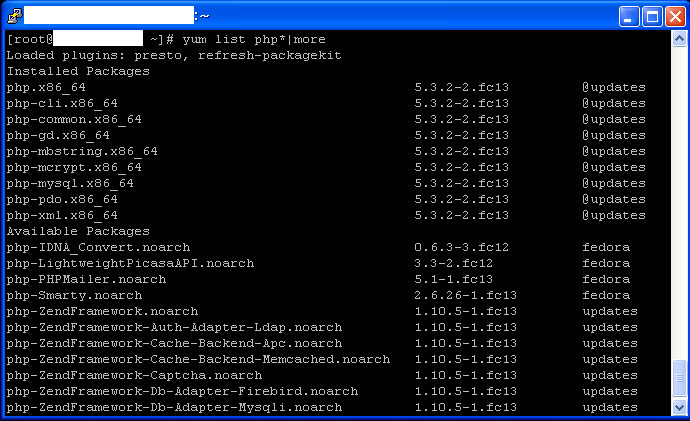
2. Configuring the extensions
When an additional extension is installed, an extension-specific configuration file is also created in /etc/php.d/ directory. You can invoke the command phpinfo() from the command line to check what configuration files have been created using this command:
root# php -r "phpinfo();" | grep "/etc/php.d/" --color=always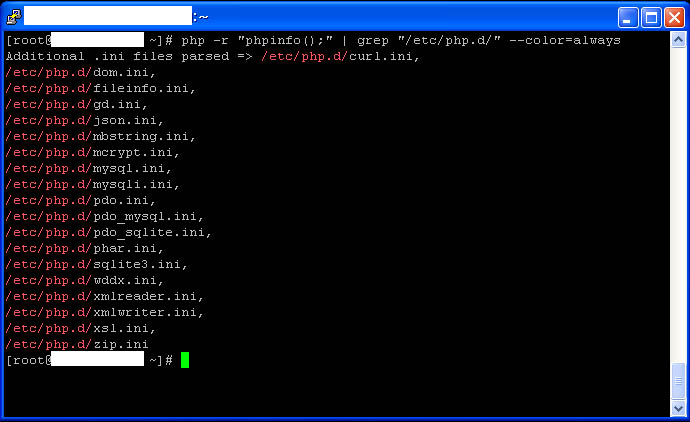
Configure all the extensions properly so that you can get the extra benefit from their features
3. Restart Apache
Restart Apache so that the changes can take effect.
root# service httpd restartThat’s all. Have fun!!
I would like to exchange links with your site tech.amikelive.com
Is this possible?
@slumber1
i regret to inform you that currently i’m not receiving link exchange requests.
Genial post and this has helped me alot in my college assignment. Thanks for providing this information.
This is a very simple, but not best method. Anyway, thank you very much for sharing this. Waiting for a post on how to compile PHP from sources.
@ Tech Admin. Thanks for this article. Very good.
@ Sergey Lempert. We look forward to receiving advice on the “best method”!
Well this article helped me a lot with setting up of web server.
Excellent article!!!
Hi,
I got my Apache and PHP working. Damn difficult it was.
Thanx for posting this info.
You did a very good note, and quite helpful. Here is a
weird problem I had…
I have Apache 2.2 and Php 5.2.5 installed, and fought my way thru the horror and byzantine weirdness of SELinux (probably a good idea to have the full SELinux, since
it will keep you safe – even though the learning curve is
a tad steep…). I got a test server running, but
I still could not see anything from my info.php file!
I just got a completely blank page, regardless of
location of info.php file! I’m running Fedora 9.
I updated the httpd.conf file with module loading
for php and directory index value, and restarted httpd.
And all the file-context values for SELinux are set
to type httpd_sys_content_t. I could see my webpages
as .html files, but could not seem to execute a simple
.php script. Most frustrating.
I then waded thru megabytes of doc… Seemed to me that
this was much more difficult than was reasonable.
I even wondered if that was someone’s plan…hmmm??
I could start php at CLI, and this;
[root@…] php -r “phpinfo();”
worked just fine. I had also tweaked the SELinux boolean
values via:
/usr/sbin/setsebool -P httpd_enable_homedirs true
and so on, so I can get view html files correctly, and
so I can use the “public_html” dirs on other userids
than just the server’s DirectoryRoot…
All the browsing stuff worked ok across a local LAN, and
on the local Fedora-9 box, but nothing seemed to allow
the php code to be executed by the blasted server.
So, here is specifically where I screwed up:
In examining the /var/log/httpd/error_log file, I
found that I was getting a “PHP Parse Error:” !!
Is this file:
not right???
No it is not. You must not have the space in the
first line. Or, just delete the “php” string entirely.
With this file:
You will get a nicely formated PHP 5.2.5 page when
you load it with your browser… eg:
http://xx.xx.xx.xx/~ahomedir/info.php
assuming you have all the SELInux permissions set up
right, and can load .html files from your “public_html”
subdir on your various home dirs.
The killer here is that if the info.php file is wrong
(with that line1 embedded space), you get no info at the
browser end. It just looks like PHP isnt running,
when it probably is. Check its install status with
the “rpm -qa” command mentioned above, and make sure
you have edited the httpd.conf file to include all the
stuff for loading the module, and processing the .php
file extension. Hope this blather is useful for someone
going thru the setup of Php/Apache and the other goodies.
– Rus
This article is ancient but shows up when looking for fedora pdo mysql. Since Fedora replaced mysql with mariadb I have difficulty installing the pdo driver for mysql/mariadb. My phpinfo doesn’t show the driver as being installed even though I installed mariadb AND php-pdo.x86_64.
When searching for help it isn’t very productive to have articles like this show up (outdated 2 years ago). Could you please update this article or just remove it? Outdated and currently incorrect Linux documentation is taking up 80% of space when looking for help.
For those in need of the PDO mysql driver after installing mariadb and pdo you need to install the driver (example of packages for 64 bit):
yum install mariadb.x86_64
yum install php-pdo.x86_64
yum install php-mysqlnd.x86_64